Add the Zoom add-in to Outlook once, make Zoom the meeting type for every invite you send, and connect your calendar so the Zoom app shows your schedule. Each step unlocks after you confirm the one before it.
Plan on about 10 minutes at your computer. Keep this page open in its own browser tab while you work.
Base campStep 1 of 8
Everything in this guide happens in Outlook on the web, the version of Outlook that runs in your browser. It's the same mailbox and calendar you already use, with nothing to install on your computer.
Sign in with your work email and password if you're asked.
Keep this guide open in its own tab so you can switch back and forth.
Using the new Outlook app for Windows?It's built on Outlook on the web, so the screens match and you can follow along there. On the older classic Outlook app, call us and we'll set it up with you.
Confirm to continue
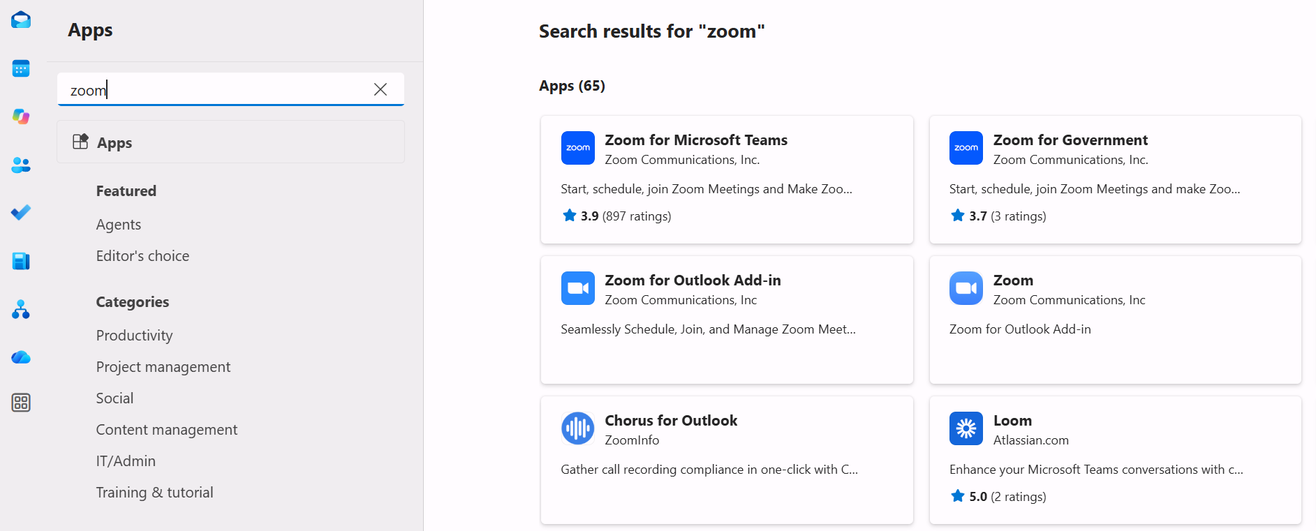
Outlook keeps add-ins in its Apps store. You open it from the narrow bar down the left side of the screen.
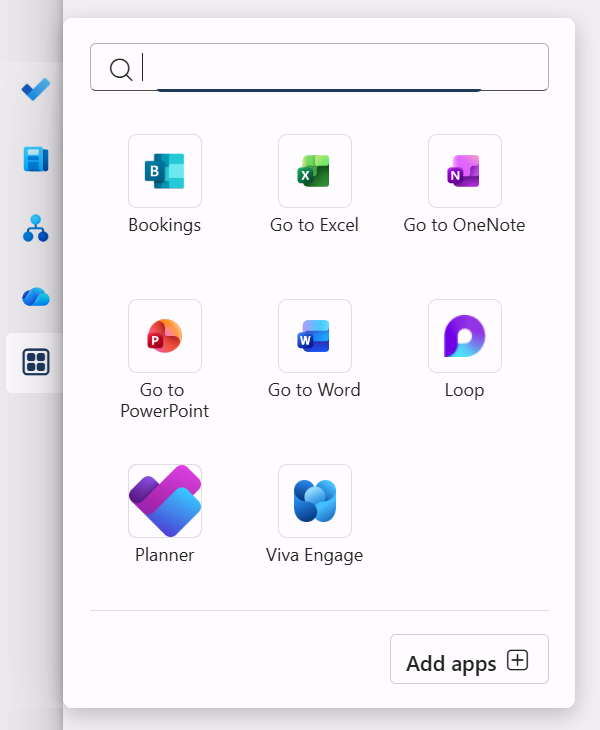
In the bar on the far left, click Apps, the icon of four small squares (marker 1).
In the panel that opens, click Add apps at the bottom (marker 2).
About "Additional purchase may be required"That's a standard Microsoft label. It means the add-in needs a Zoom account. You'll use your existing company Zoom account, so there's nothing to buy.
Confirm to continue
Now tell Outlook to put a Zoom link on every meeting you create, so you never have to remember.
Click the Settings gear at the top right of Outlook.
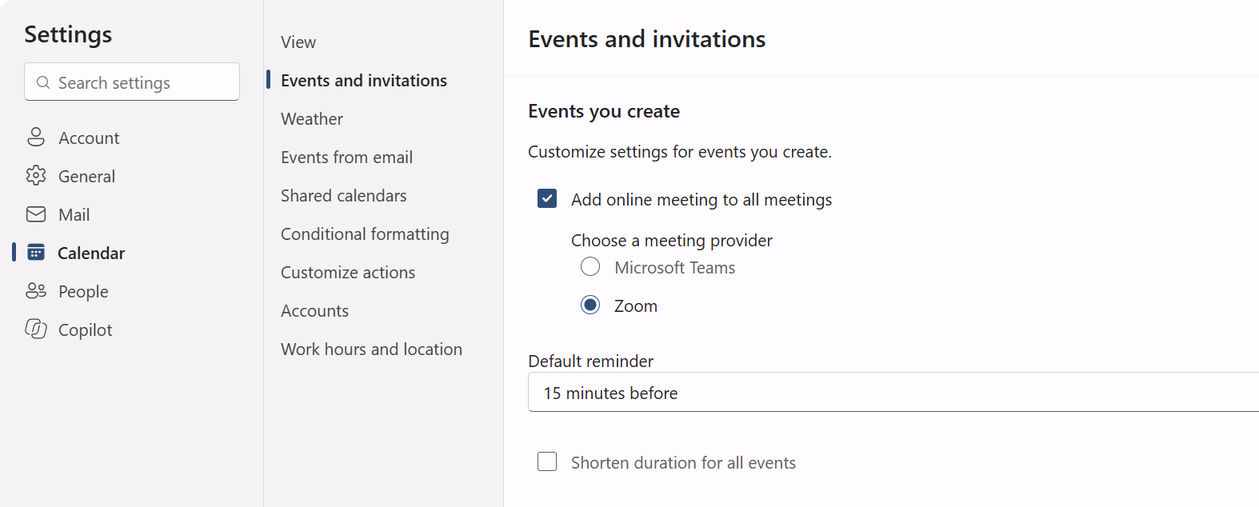
Choose Calendar (marker 1), then Events and invitations (marker 2).
Tick Add online meeting to all meetings (marker 3).
Under Choose a meeting provider, select Zoom (marker 4).
Click Save if you see a Save button, then close Settings.
Zoom isn't listed as a provider?The add-in hasn't finished loading. Close Settings, refresh the page (press F5), and come back to this step.
Confirm to continue
Prove it works with a quick test event. The first time, Zoom asks you to sign in so it can create meetings for you.
Go to your Calendar and click New event.
If a Zoom panel asks you to sign in, sign in with your company Zoom account. If your company signs in to Zoom through Microsoft, choose SSO.
Give the event a title like Zoom test and pick a time later today.
Check for Zoom joining details (a zoom.us link) in the event. No Zoom details? Click Zoom in the event's toolbar, then Add a Zoom Meeting.
Click Save. Keep the event for now; you'll look for it in the Zoom app at the end.
From now onEvery new meeting you create in Outlook gets a Zoom link without any extra clicks.
Confirm to continue
This is the step that lets the Zoom app show your Outlook calendar. You do it once, on the Zoom website.
In a new tab, go to zoom.us and sign in with your company Zoom account.
Open your Profile, scroll to Calendar and contacts integration, and click Connect. Some accounts call the button Configure Calendar and Contacts Service.
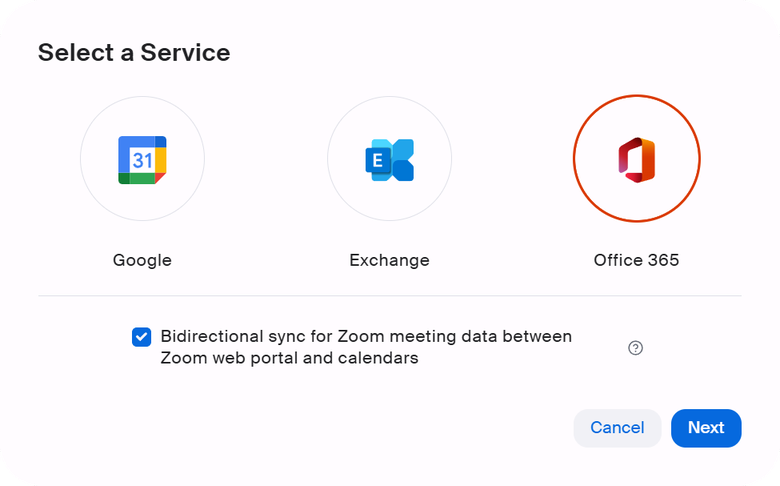
In the Select a Service window, choose Office 365 (marker 1).
Leave Bidirectional sync ticked (marker 2) and click Next (marker 3).
Sign in with your Microsoft work email if asked, review the permissions, and click Authorize or Accept.